Using Full Site Editing (FSE) with The7
Full Site Editing (FSE) is a native WordPress tool, and it works with The7 theme in the usual way – so you can rely on any official WordPress documentation to learn and apply it. Nevertheless, below you will find a very short guide highlighting the most important aspects of using FSE with The7, illustrated through editing a The7 demo.
Most of the things you may want to edit can be found under the Edit Site link (fig. 1) – for example, the header or footer (fig. 2).
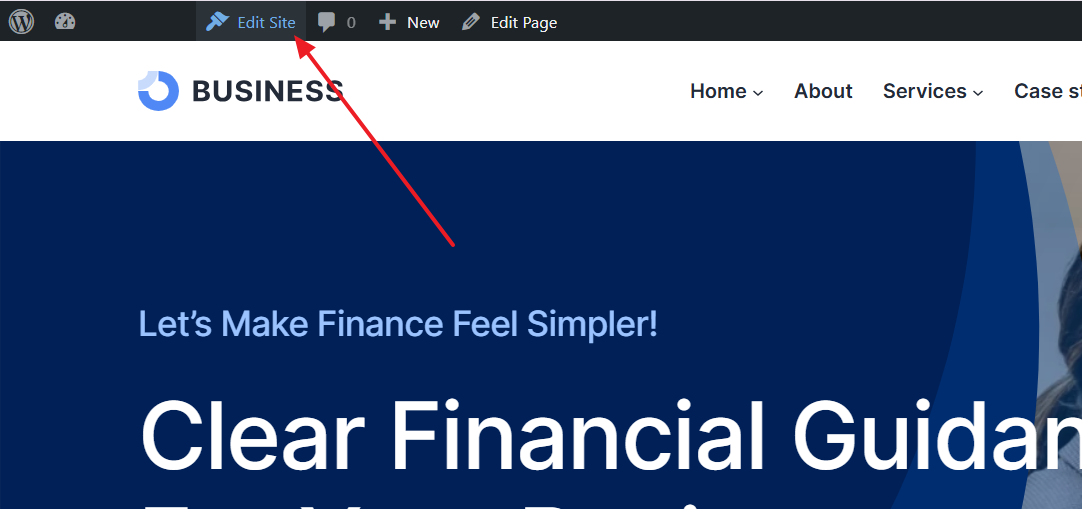
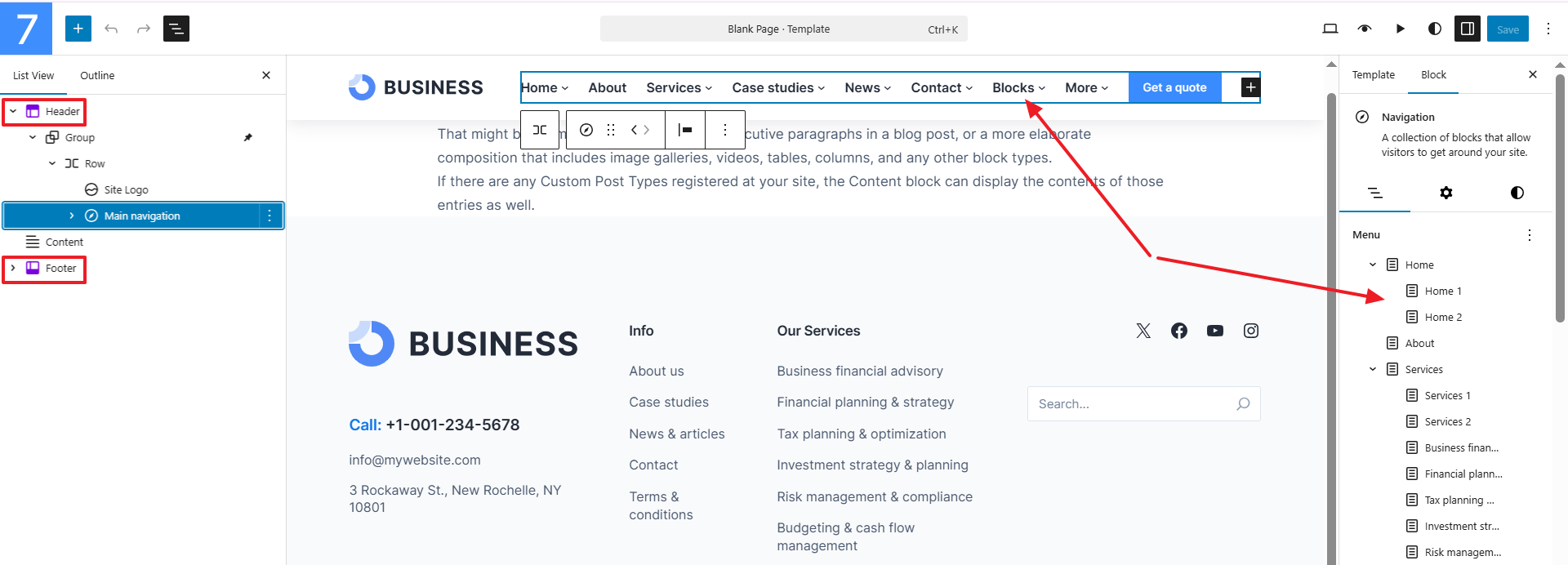
Fig. 2. Editing Header and Footer.
And if you need to edit other areas, for example, a posts archive, simply open the appropriate archive page and click the link in the top bar (fig. 3).
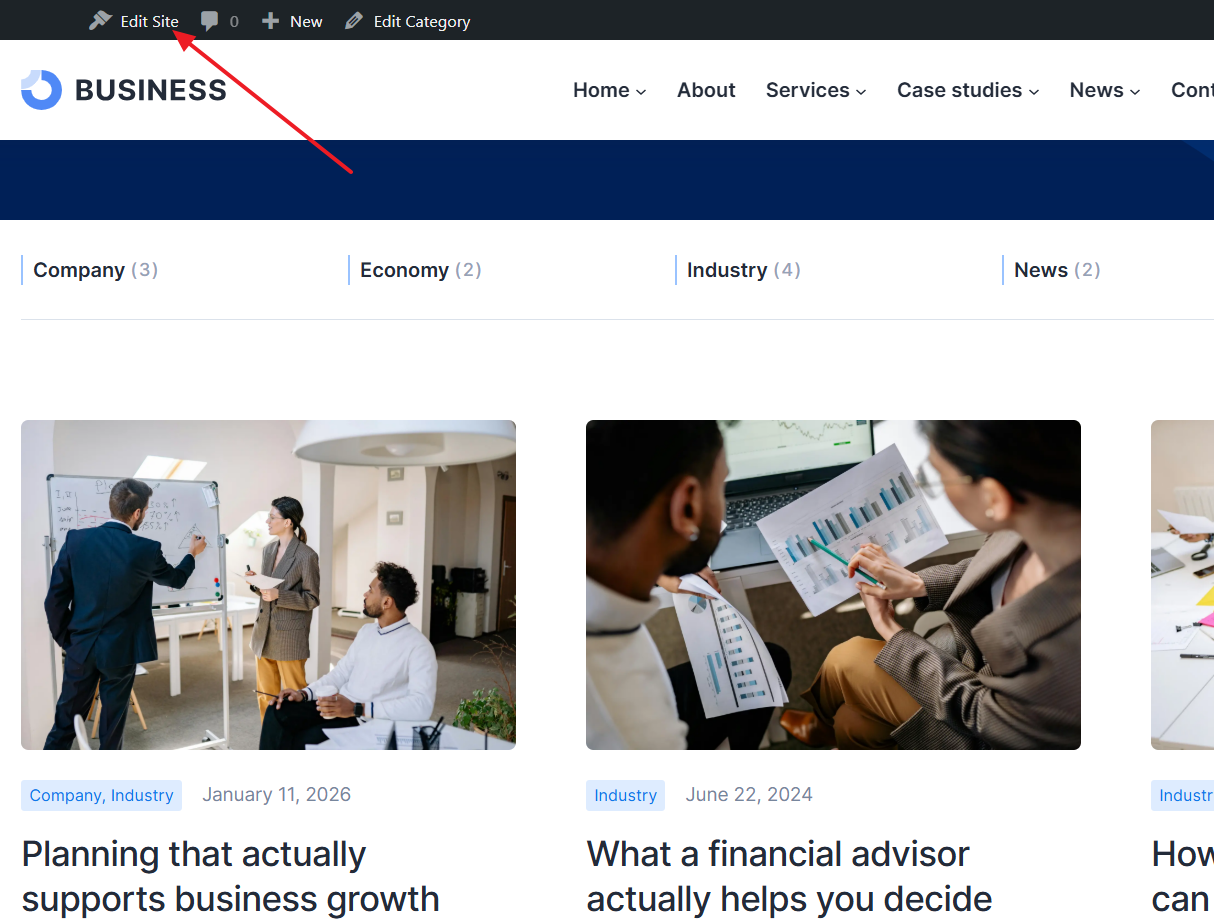
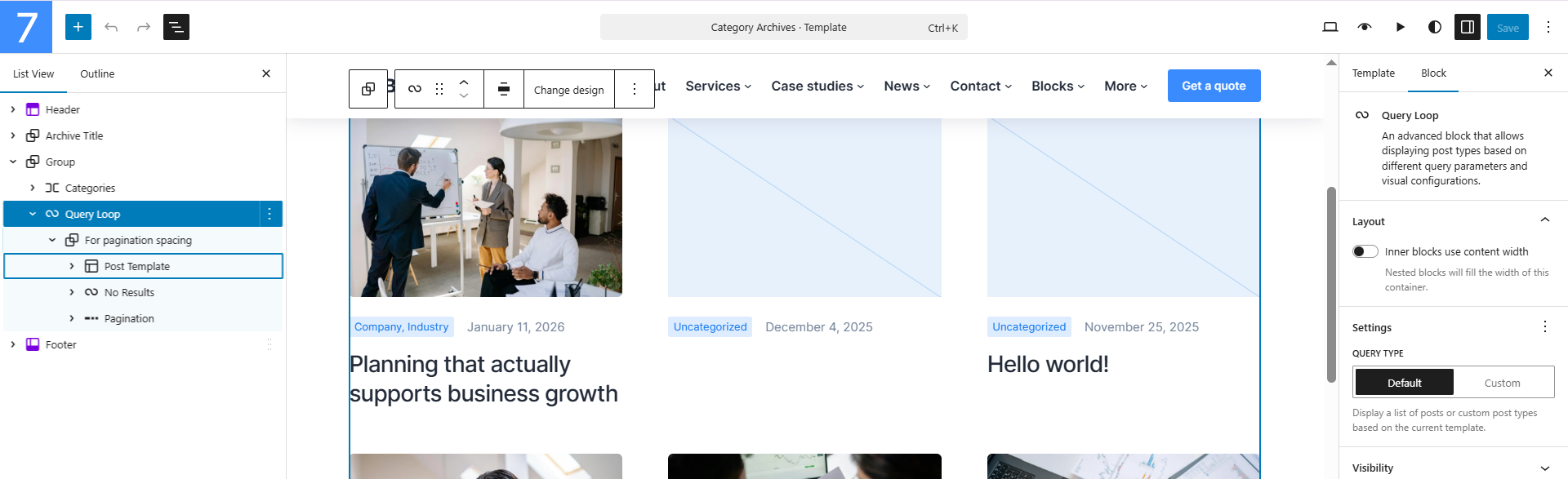
Fig. 3.2. Editing Archive.
The same approach can be applied if you need to edit a Single Post, let’s say its layout or featured image area.
All of these layouts can also be accessed through Dashboard → Appearance → Editor, under the Patterns and Templates sections (fig. 4). You can also find options for editing Style (such as colors, fonts, and other design settings) directly under the Editor.
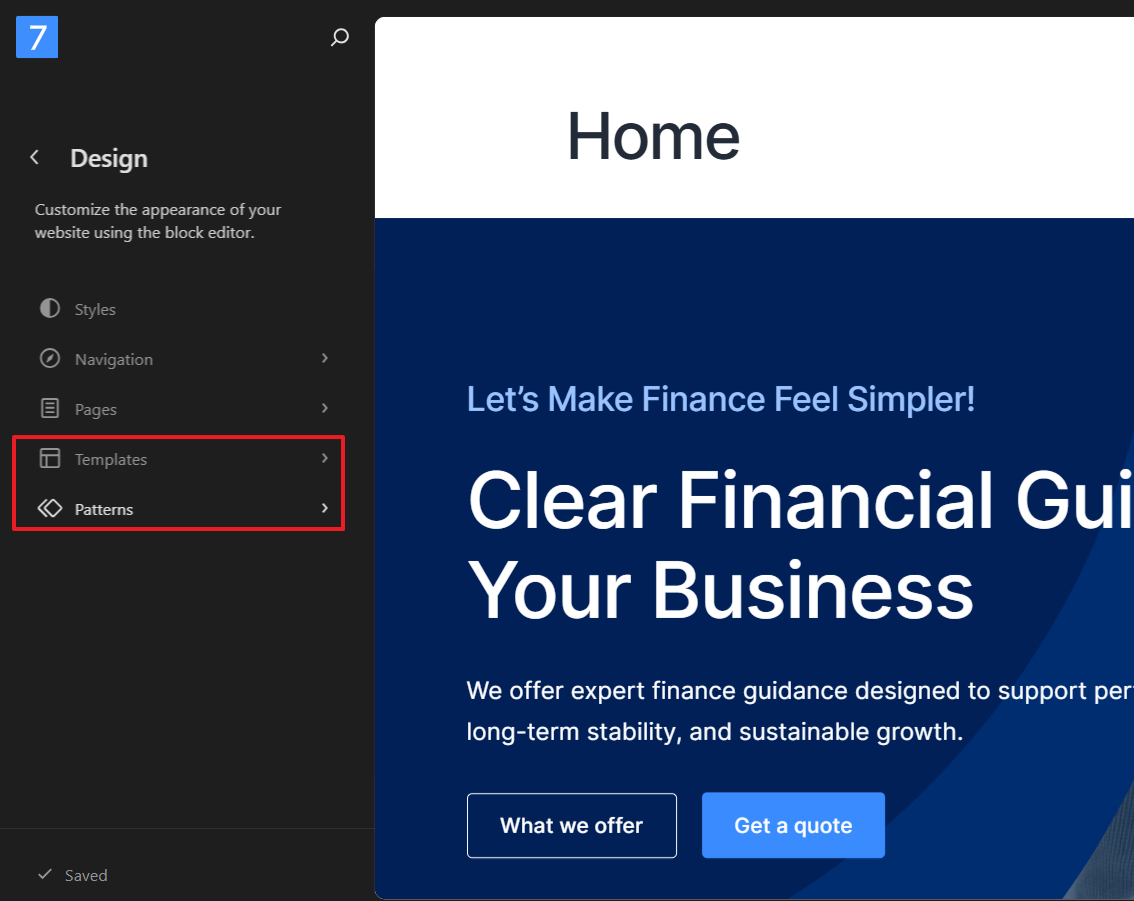
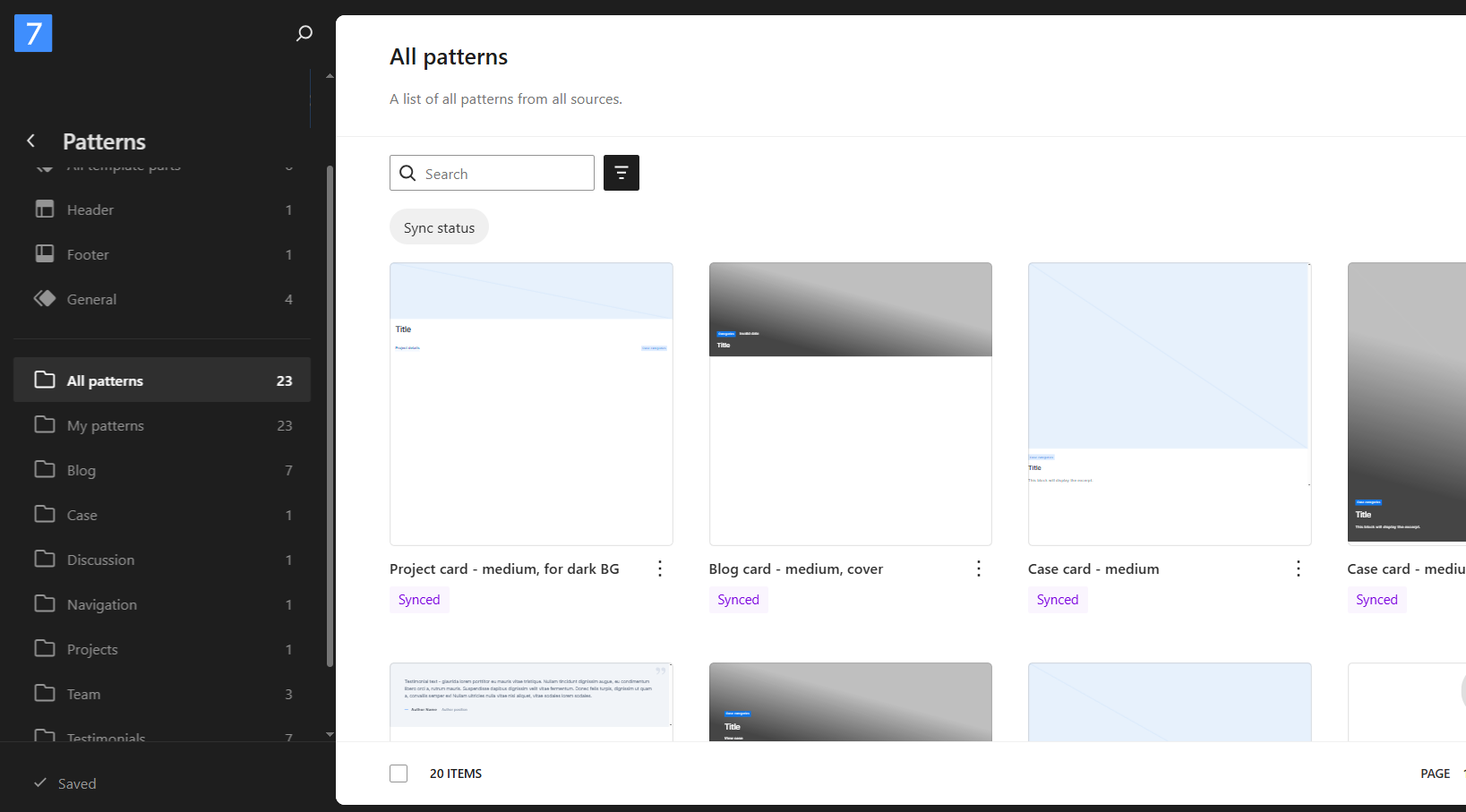
Fig. 4.2. Editing Patterns.
If you want another beginner guide on Full Site Editing, here’s one from WPBeginner.
When it comes to editing blocks, you can find more information about the Better Block Editor and its functionality in its official guide, available at https://docs.wpbbe.io/